

Apple’s MacBook line has long enjoyed a reputation for strong security and privacy, often seen as a safer alternative to Windows laptops. This perception is largely based on Apple’s tight hardware-software integration, macOS’s Unix-based architecture, and a controlled ecosystem. However, like any connected device, MacBooks are not immune to security threats. From historic vulnerabilities to modern-day phishing and spyware, understanding the security landscape of MacBooks is critical for both casual users and professionals.
Built-In Security Features of macOS
macOS comes equipped with a robust set of built-in security features designed to protect users from both software and hardware threats. One of the core elements is System Integrity Protection (SIP), which restricts the root user from modifying critical system files, preventing malware from making persistent changes. Gatekeeper enhances this by ensuring only trusted apps—those from the App Store or identified developers—can be installed, reducing the risk of installing malicious software.
Apple also includes XProtect, a silently running malware scanner that receives regular updates in the background. When a known threat is detected, macOS automatically blocks it and notifies the user. FileVault 2 offers full-disk encryption, ensuring that all data is protected with XTS-AES-128 encryption and a 256-bit key, even if the Mac is lost or stolen.
The T2 Security Chip, and more recently Apple Silicon (M1/M2/M3), adds hardware-level security features like encrypted storage, secure boot, and on-the-fly data encryption. Combined with sandboxing and App Notarization, macOS minimizes the risk of software gaining unauthorized access to user data. These systems work seamlessly and silently, making macOS one of the most secure consumer operating systems available today.
Apple’s security framework is built into every layer of the MacBook experience:
System Integrity Protection (SIP): Prevents potentially malicious software from modifying protected system files.
Gatekeeper: Ensures only trusted apps from the App Store or identified developers can be installed.
XProtect: A silent malware detection and removal tool updated automatically in the background.
T2 Security Chip / Apple Silicon: Encrypts data on the fly and verifies the boot process.
FileVault 2: Full-disk encryption that protects your data even if your MacBook is lost or stolen.
Sandboxing: Apps are restricted to their own environments, limiting potential damage from malware.
MacBook Security Breaches and Vulnerabilities
Despite Apple’s efforts, MacBooks have experienced notable security issues:
Root Login Bug (2017): A serious flaw in macOS High Sierra allowed users to log in as “root” without a password. Apple issued a rare emergency patch.
Thunderstrike Attacks: A class of firmware-level attacks through Thunderbolt ports, allowing permanent compromise even past OS reinstall.
XCSSET Malware (2020): Spread via Xcode developer projects, this malware hijacked Safari and stole data.
Shlayer Trojan: One of the most persistent malware families on macOS, distributed through fake Flash Player updates.
Pegasus Spyware (2021): NSO Group’s spyware exploited zero-click vulnerabilities in macOS and iOS, affecting journalists and dissidents.
These events show that while macOS is safer out of the box, it’s not invincible.
Common Threat Vectors on MacBooks
Even with strong OS-level protections, users are vulnerable due to:
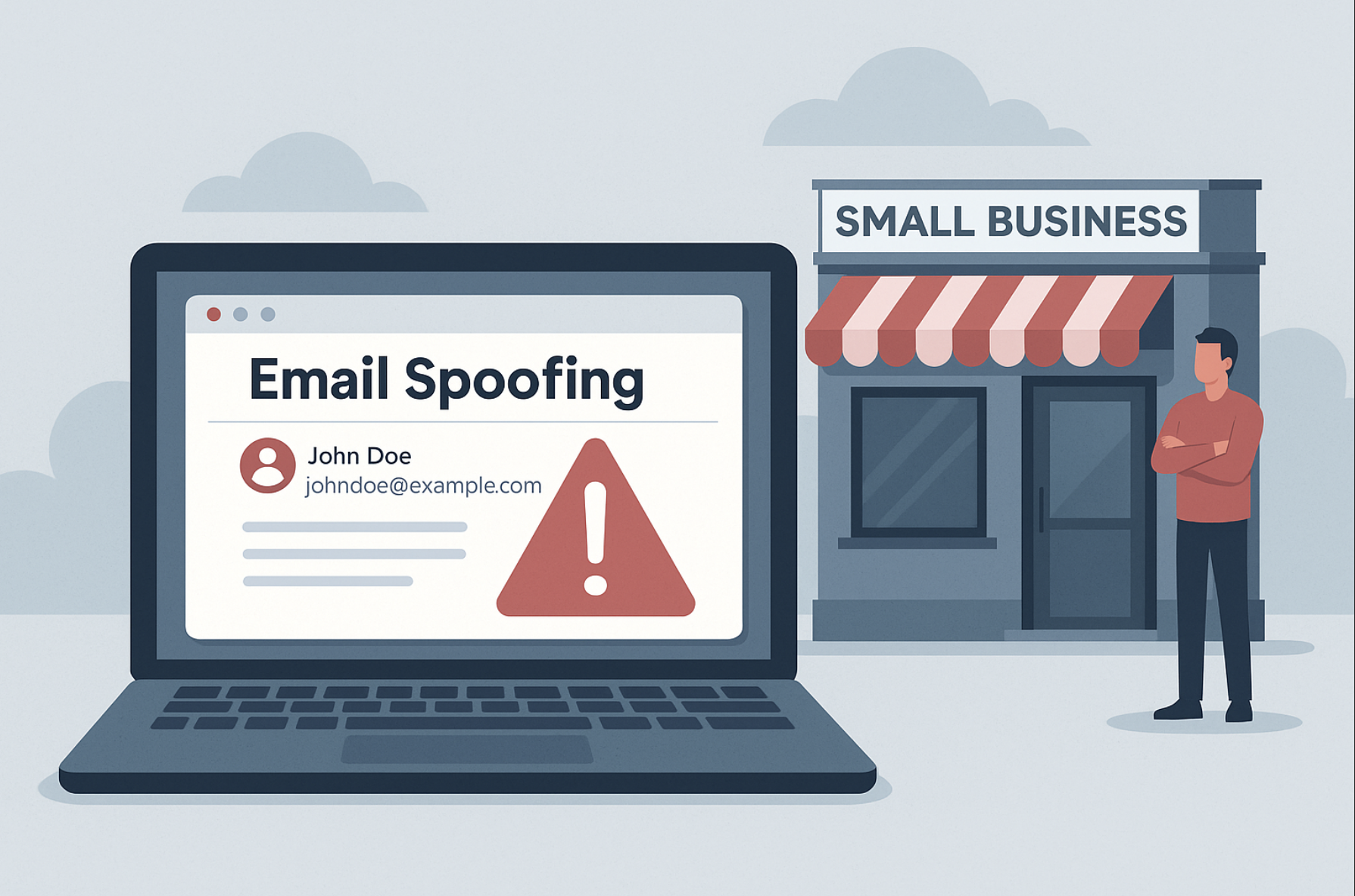
Phishing Emails: Attackers trick users into installing malicious apps or revealing passwords.
Public Wi-Fi Sniffing: Lack of VPN usage leads to session hijacking.
Malicious USB Devices: Rogue USB accessories can deploy malware or capture keystrokes.
Fake Software Updates or Cracks: A common method to spread trojans or spyware.
Best Practices for Securing Your MacBook
Securing your MacBook requires a combination of Apple’s built-in tools and smart user practices. Begin with regular updates—macOS updates often include vital security patches, so keeping your system current is essential. Enable FileVault to encrypt your entire hard drive, ensuring data protection if your MacBook is lost or stolen.
Set a strong login password and use Touch ID or Apple Watch unlock for secure, convenient access. Turn on Find My Mac, which allows you to track, lock, or erase your Mac remotely in case of theft. Avoid downloading apps from unknown sources—use only the Mac App Store or verified developers through Gatekeeper.
Install a password manager to generate and store complex passwords, reducing the risk of phishing or credential reuse. Be cautious of public Wi-Fi—use a VPN to encrypt your connection in public spaces. Disable sharing services like AirDrop or File Sharing when not in use, and monitor which apps have access to sensitive permissions.
For added visibility, use tools like Little Snitch to monitor outgoing network traffic and Malwarebytes for occasional malware scans. By combining Apple’s built-in security with proactive habits, you dramatically reduce your chances of being compromised while keeping performance seamless.
Here are the top steps you should take to stay secure:
Keep macOS Updated: Apple regularly patches security flaws. Always install updates.
Enable FileVault Encryption: Protects your hard drive from data theft.
Use Strong Passwords + Touch ID: Avoid easy-to-guess passwords and enable biometric locks.
Avoid Public USBs and Networks: Use your own accessories and a trusted VPN in public.
Install Only Trusted Software: Stick to App Store apps or those signed by known developers.
Use a Password Manager: Helps prevent phishing and reuse attacks.
Enable Find My Mac: In case of theft, this lets you locate and wipe your device remotely.
Consider Third-Party Antivirus (Optional): While not required, tools like Malwarebytes can offer extra protection against adware and non-traditional malware.
Monitor System Activity: Use Activity Monitor or tools like Little Snitch to detect unknown processes or outgoing connections.
Apple Silicon and the Future of MacBook Security
With the transition to Apple Silicon (M1, M2, and M3 chips), Apple has increased hardware-level security dramatically. These chips feature Secure Enclave, hardware-verified secure boot, and encrypted memory — all elements that reduce the attack surface significantly.
However, as MacBooks gain popularity among developers, business users, and high-value targets, attackers are increasingly creating Mac-specific exploits. The arms race continues.
MacBooks offer an impressive range of built-in protections, making them one of the most secure laptops available by default. But the user’s behavior ultimately determines how safe the device really is. With proper awareness and precautions, Mac users can stay well-protected — even in a rapidly evolving threat landscape.
Windows Laptop vs. MacBook Security

When it comes to security, both Windows laptops and MacBooks have evolved significantly, but their approaches differ due to platform philosophy, market share, and system architecture.
MacBooks are generally considered more secure out of the box. Apple’s closed ecosystem limits third-party interference, and macOS is Unix-based, offering strong permissions management. Built-in features like System Integrity Protection (SIP), Gatekeeper, XProtect, and Apple Silicon’s Secure Enclave create a layered security model. Additionally, Apple tightly controls both hardware and software, which reduces vulnerabilities due to inconsistencies.
Windows laptops, on the other hand, support a broader range of hardware and software, which creates a larger attack surface. However, Windows has made huge strides with features like Windows Defender, BitLocker, Secure Boot, and TPM 2.0 encryption chips. Microsoft has also introduced more aggressive updates and mandatory driver signing to reduce vulnerabilities.
That said, Windows’ popularity makes it a more frequent target for malware and ransomware. MacBooks, while not immune, face fewer large-scale attacks simply due to their smaller user base.
In summary, MacBooks are often more secure by design, while Windows laptops require more configuration and vigilance—but with proper setup, both can be highly secure.







Add comment